Teaching the assistant: knowledge, open questions and testing
The assistant knows your business details from Bookly; add the rest under “Extra knowledge”. Answer “Open questions” once — it’s sent and remembered — and test it as a client.
What the assistant already knows
Your business details, hours and team, price list, cancellation policy, deposits and booking page reach the assistant straight from Bookly. “What the assistant already knows” shows them exactly as the assistant gets them. To change something, change it on its own screen — the assistant updates right away.
Extra knowledge
What clients ask that isn’t in your business details — parking, what to bring, whether kids can come — add as a question and answer or as free text. You can start from “Questions clients often ask”. The assistant doesn’t make things up: whatever isn’t written here or in your business details comes to you.
Open the screen
ManageMessagingAI assistantTap “Add knowledge” and choose whether it’s a question and answer or free text.
Write it and tap “Add”, then “Save” in the bar at the bottom of the screen.
Open questions
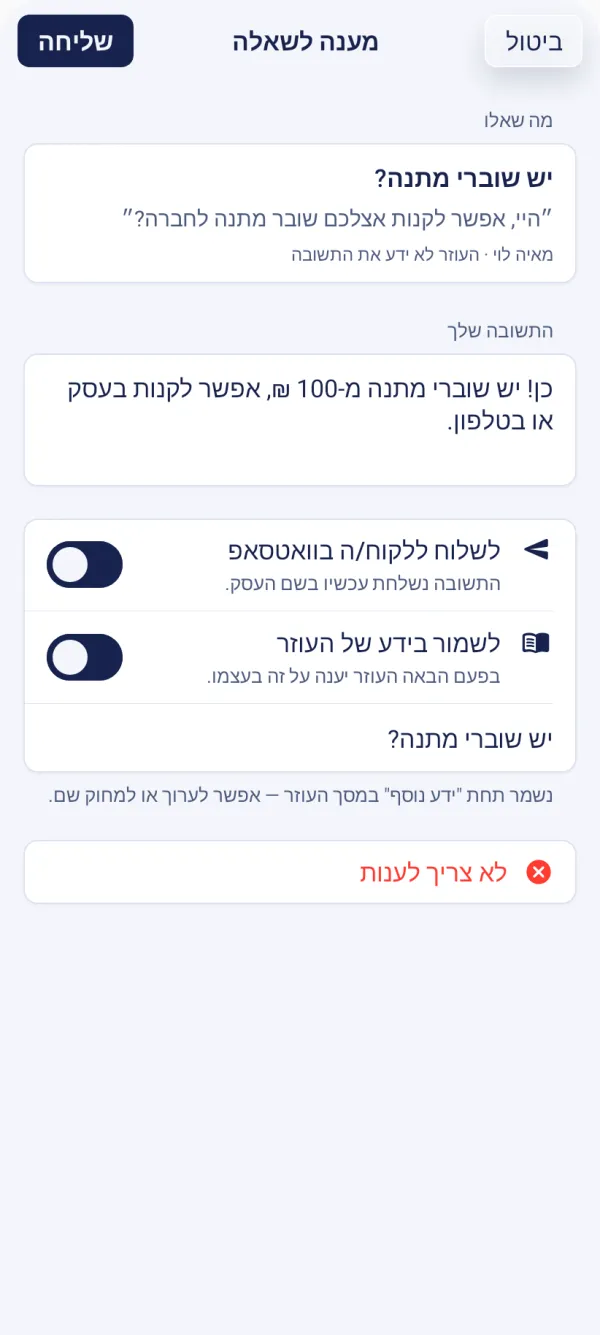
A question the assistant couldn’t answer waits in “Open questions”, and the client is told you’ll get back to them. Write the answer as you’d give it yourself and choose: “Send to the client on WhatsApp” — the answer goes out now in your business’s name — and “Save to the assistant’s knowledge”, so next time it answers by itself. A question that needs no answer is cleared with “No need to answer”.
WhatsApp only allows sending the answer up to a day after the client’s message. After that, get back to them directly — you can still save the answer to the knowledge.
In the app: Manage › Messaging › AI assistant › Open questions
Testing it as a client
In the test chat on the assistant’s screen, write to the assistant as a client would on WhatsApp and see what it answers. Nothing is sent, and tests don’t count toward the replies quota (they have a daily limit of their own). The test answers from what’s saved — save your changes first. You can also open the chat link from your phone, like a new client.
In the app: Manage › Messaging › AI assistant › Try it as a client
The assistant’s screen also has “Client conversations”: what clients asked and what the assistant answered. A conversation it handed to you is marked — get back to the client and add the answer to the knowledge.
The assistant gave a wrong answer. What do I do?
Check in “What the assistant already knows” that the details on your business’s screens are right, and add or fix the answer under “Extra knowledge”. You can also add instructions — not to promise discounts, for example. After saving, test again in the test chat.
How much knowledge can I add?
Up to the number of items shown next to “Extra knowledge”. When you reach it, merge similar items into one.
Do the additional instructions add knowledge?
No. They steer how to answer — tone, form of address, what not to promise. Information about your business goes under “Extra knowledge”.
Updated: 10 October 2026
Related guides
- The WhatsApp AI assistant: turning it on and setting it upProThe assistant answers clients on WhatsApp on your behalf — prices, hours and free slots, with a booking link — only from your business details and the knowledge you add.
- Client chats, the message log and emails“Chats” shows everything the bot and assistant sent each client and their replies, like WhatsApp, with delivery status. The app also has a message log; the website, client emails.
Did this guide help?
Still have a question? Write to us