Roles and permissions: owner, manager, staff, secretary, social
What each role sees and can do — owner, manager, staff, secretary and social-media manager — and how to change someone’s permission.
Everyone who signs in to the business account has a role, and each person sees in “Manage” only what their role needs. The business owner gives access and chooses the role; the owner’s own role can’t be changed.
Owner
Everything: the calendars, clients, settings and team — plus the subscription and billing, branches, giving the team access, changing the page address and paid promotion.
Manager
All calendars, clients, settings and the team: the price list, hours, messages, the page and the insights. No subscription or billing, and no giving others access.
Staff
In the calendar, they see and manage only their own appointments: booking, blocking time and marking arrivals. Under “Clients”, only the people who booked with them, with their history with them. No business revenue. On the member’s card, under “What they see in the app and on the website”, the owner can open their own appointments’ revenue, the reviews and the price list — all closed by default. Someone who doesn’t “Serve clients” has no calendar and no clients: in the app they get Shifts, Time clock and “Manage”.
Secretary
The front desk: every staff member’s calendar — booking, rescheduling and cancelling — the clients and the waitlist. No settings, team or money. A secretary doesn’t take appointments and doesn’t count toward the team limit.
Social-media manager
Social only: planning posts in the calendar, feed and grid, sending for approval, comments, and publishing to Instagram, Facebook and TikTok. No appointments calendar, clients or settings, and no place in the team limit.
Secretary and social-media manager are available on Pro. In a business with shifts and a time clock, every role sees their own shifts and clocks in.
Changing a role
Open “Team & hours”
ManageServices & teamTeam & hoursTap the staff member, and under “Access to the business account” tap “Change access”.
Choose another permission and tap “Save”.
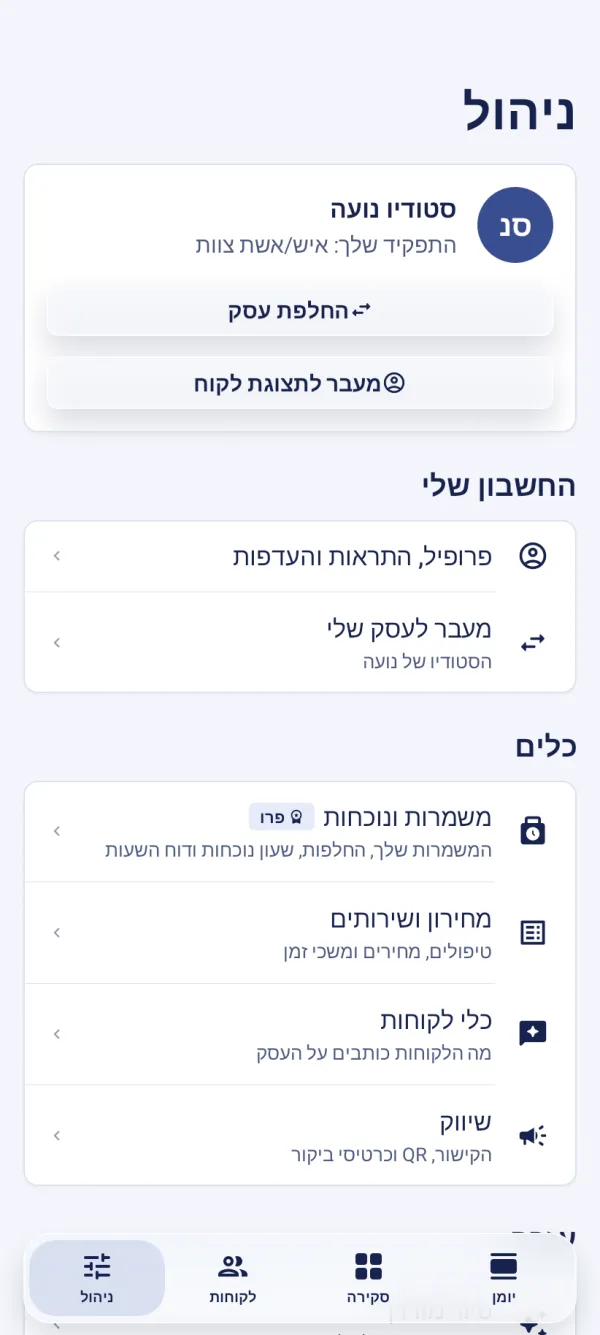
At the top of “Manage”, under the business name, it says “Your role” — handy for someone who works at several businesses. Secretaries also see the price list, view only; staff — if the owner opened it to them.
Why can’t a staff member see the settings?
Settings belong to the owner and managers. If they need them, the owner changes their permission to “Manager”.
Can a manager see the subscription and billing?
No. The subscription and billing are the owner’s only.
Updated: 18 October 2026
Related guides
- Adding staff members and inviting them to the appAdd a staff member with their own calendar, colour and services, then give them access to the business account: a mobile number and a permission, sent on WhatsApp.
- Shift scheduling: drafts, publishing, availability and swapsProPlan the team on a weekly board and publish in one tap; staff confirm shifts, give availability, claim open shifts and ask for swaps — on the website or in the app.
Did this guide help?
Still have a question? Write to us