NFC tags for clocking in
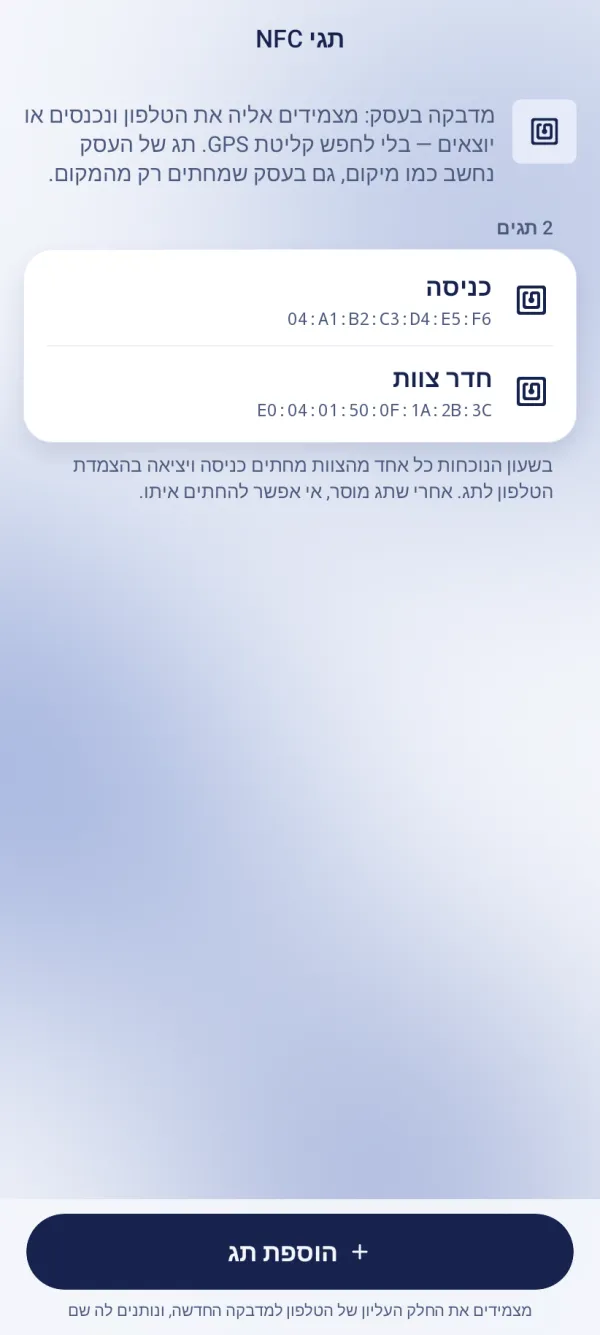
Stick an NFC tag at the business and staff clock in by holding a phone to it — no waiting for GPS. The tag counts as being on site, even where that’s required.
An NFC sticker at the business — by the entrance, say — lets the team clock in and out by holding a phone to it, without waiting for GPS. The business’s tag counts as location, even where clocking in on site is required. Once a tag is removed, it can’t be used to clock in. NFC tags come with the “Team & Attendance” bundle.
Adding a tag
Open the screen
ManageTime clock & payrollTime clockNFC tagsTap “Add tag” and hold the top of the phone to the new sticker.
Under “Where is the tag”, write where it is — “Entrance”, say — and tap “Add the tag”.
Clocking in with a tag
On the time clock, tap “Tap an NFC tag” and hold the phone to the tag — the clock-in or clock-out is recorded.
Reading tags works on iPhone. iPads have no NFC, so there you clock in by location.
Who adds and removes tags?
The owner and the managers. The whole team can clock in with the tags.
Can I use a credit card or another phone as the tag?
No. Only NFC stickers registered at the business.
Updated: 10 October 2026
Related guides
- Time clock: clocking in, out and breaksProStaff clock in and out from their phone or the website, take breaks and see their hours for the day and the week. You can require clocking in on site; managers see who’s working.
- A shared time clock station on a tabletTeam & Attendance packA tablet at the business where each team member clocks in: tap your name, type a personal code, done. Turn it on on the website or in the app, and open it on the tablet.
- Add-on packs: marketing, communication and teamA monthly add-on to your plan, without changing plans: Marketing & Social, Communication & AI, and Team & Attendance. Stack packs of one kind to raise its quotas.
Did this guide help?
Still have a question? Write to us