Branding and page design
Logo, brand colours, cover image, slogan, layout, gallery and contact buttons — so your business page looks like you. The custom design is part of Pro.
All the design is in one place, “Design & branding” in the business settings: the logo and colours (main and secondary) — also used on the business cards and the in-store screen — and the cover image, slogan, layout, gallery and contact buttons. The slogan is open on every plan; the rest of the custom design is part of Pro, and on Basic the page uses the system design.
Design & branding
Open “Design & branding”
ManageBusiness settingsDesign & brandingThe page shows as clients see it. Tap any part to edit it: the photos, the name and slogan, the address, the contact buttons, “About” and the gallery.
In the floating bar under the page: “Layout”, the colours (main and secondary), the Bookly stamp and “View” — to see the page without the edit handles.
Tap “Save”.
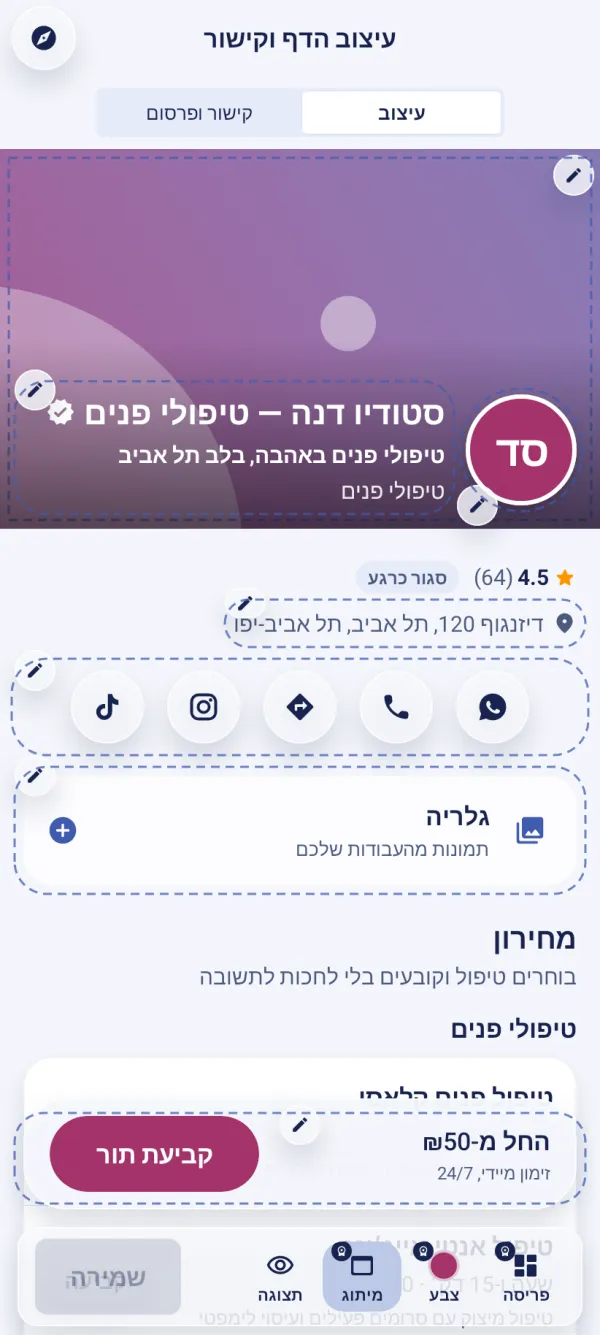
The logo is also the page’s icon in the browser tab, and the main colour paints the booking button.
The small “Powered by Bookly” stamp appears at the top of the page on the website, not in the app. It can be hidden only on a paid Pro plan — not during the trial.
Your design is kept: when the business isn’t on Pro it isn’t shown on the page, and it comes back once the business is on Pro again. At a branch, the design comes from the main business unless you detached it.
The guided tour is in the app
In the “Business page and design” chapter, the tour shows this on the screen itself, step by step.
Does the page look the same in the app as on the website?
Yes — the same design in both. In the app, “Preview on website” opens the page on the website with your unsaved changes.
How do I change the order of the gallery photos?
On the website, with the arrows on each photo. On the phone, long-press a photo and choose to show it first, move it back or move it forward.
Updated: 10 October 2026
Related guides
- Business details: address, phone and “About”The name, description, phone, social links and address shown on your business page and in search — and how to write “About” with AI on the website.
- Printable business cardsA business card with a booking QR code, on one of dozens of designs, with your texts, colours, font and logo — to download, share and print.
- What clients see when they bookThe client’s path: your business page, choosing a service, a staff member and a time, their phone number and a WhatsApp confirmation — and what of it you control.
- The plans: Basic and Pro, and how they differBasic is for solo professionals: calendar, business page, online booking and reminders. Pro is for a team: cancellation protection, forms, punch cards, an AI assistant and more.
Did this guide help?
Still have a question? Write to us