Connecting a TV: Apple TV, Android TV or any browser
Create a screen, open Bookly on the TV — or bookly.win/screen in its browser — and type or scan the code it shows. Within seconds the screen is live.
“Screens in your business” turns a TV at the reception into a screen that updates itself from the calendar: today’s appointments, a slot that just opened and more. How many: 1 on Basic and 3 on Pro, and the marketing bundle adds more.
What you need
A TV with Apple TV or Android TV: download Bookly on the TV and open it. Any other smart TV (Samsung, LG and more): go to bookly.win/screen in its browser. Either way, the TV shows a 6-character code and a QR code.
Open the screens
ManageScreens in your businessIf there’s no screen yet: tap “Create your first screen”, name it, choose how the TV hangs and a template.
Tap “Connect a TV” and choose which screen it shows.
Type the code from the TV — or tap “Scan the code from the TV” and point the camera — then “Connect TV”.
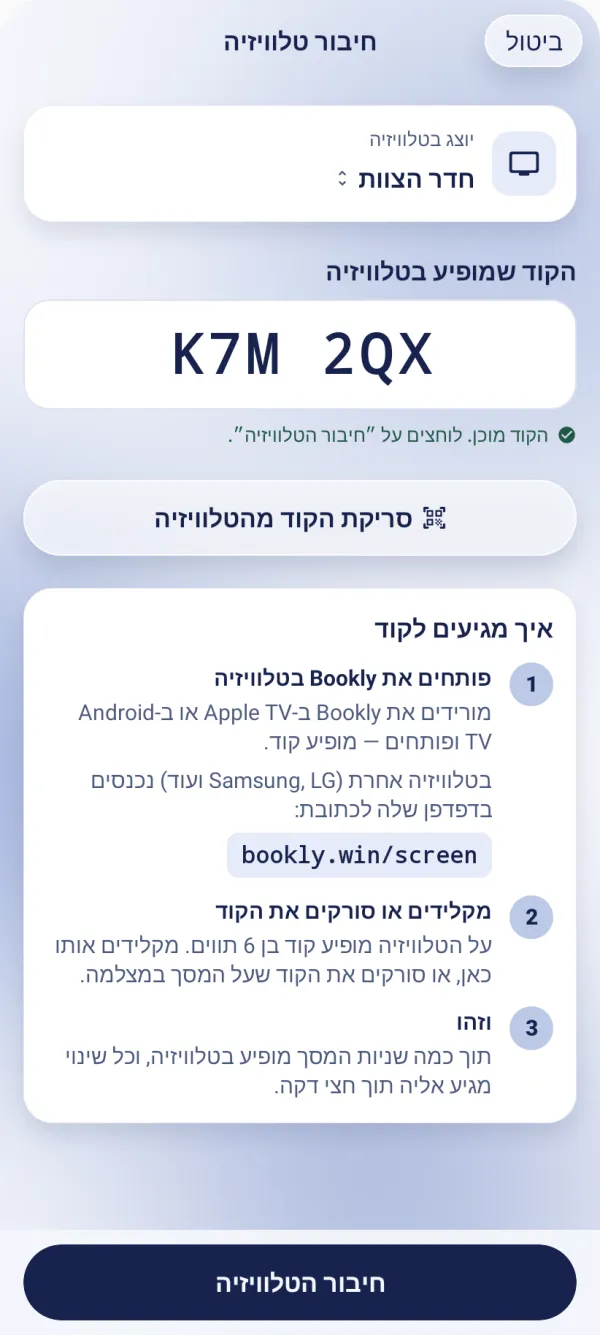
Within a few seconds the screen appears on the TV, and every change you send reaches it within half a minute.
Outside opening hours the screen rests: a dimmed clock and “Screen resting”, and it comes back by itself half an hour before opening. Right after connecting it stays awake for a few minutes even at night, and pressing OK on the remote wakes it.
You can connect another TV to a screen that already has one: the new connection replaces it, and the old TV goes back to showing a pairing code.
The guided tour is in the app
In the “In-store screens and music” chapter, the tour shows this on the screen itself, step by step.
The code doesn’t work?
The code never contains 0, O, 1 or I — check the characters again. The code on the TV changes every few minutes, so type the one shown now.
Who can connect a TV?
The business owner and managers. The rest of the team sees that the screens are managed by the management.
How do I disconnect a TV?
In the screen’s editor, in the TV section, choose to disconnect it. It goes back to showing a pairing code, and you can connect it again at any time.
Updated: 10 October 2026
Related guides
- Templates, zones and content on the screenPick a template, decide what each zone of the screen shows — today’s appointments, an opened slot, prices, the gallery, a booking QR and more — and send it to the TV.
- Music on the screen and a remote on your phoneProBackground music from YouTube or Apple Music on the business’s TV, with a remote on your phone or the website: play, pause, next song, volume and changing the playlist.
Did this guide help?
Still have a question? Write to us